How to Make a Cross Stitch Pattern From Any Photo
A complete guide to making a cross stitch pattern with realistic floss limits, Aida sizing and confetti control.
2 September 2026 · 7 min readGuides & notes · Reading Charts
Your exported PDF has more in it than a grid. What each part is for and how to use it without losing your place.
24 August 2026 · 5 min read
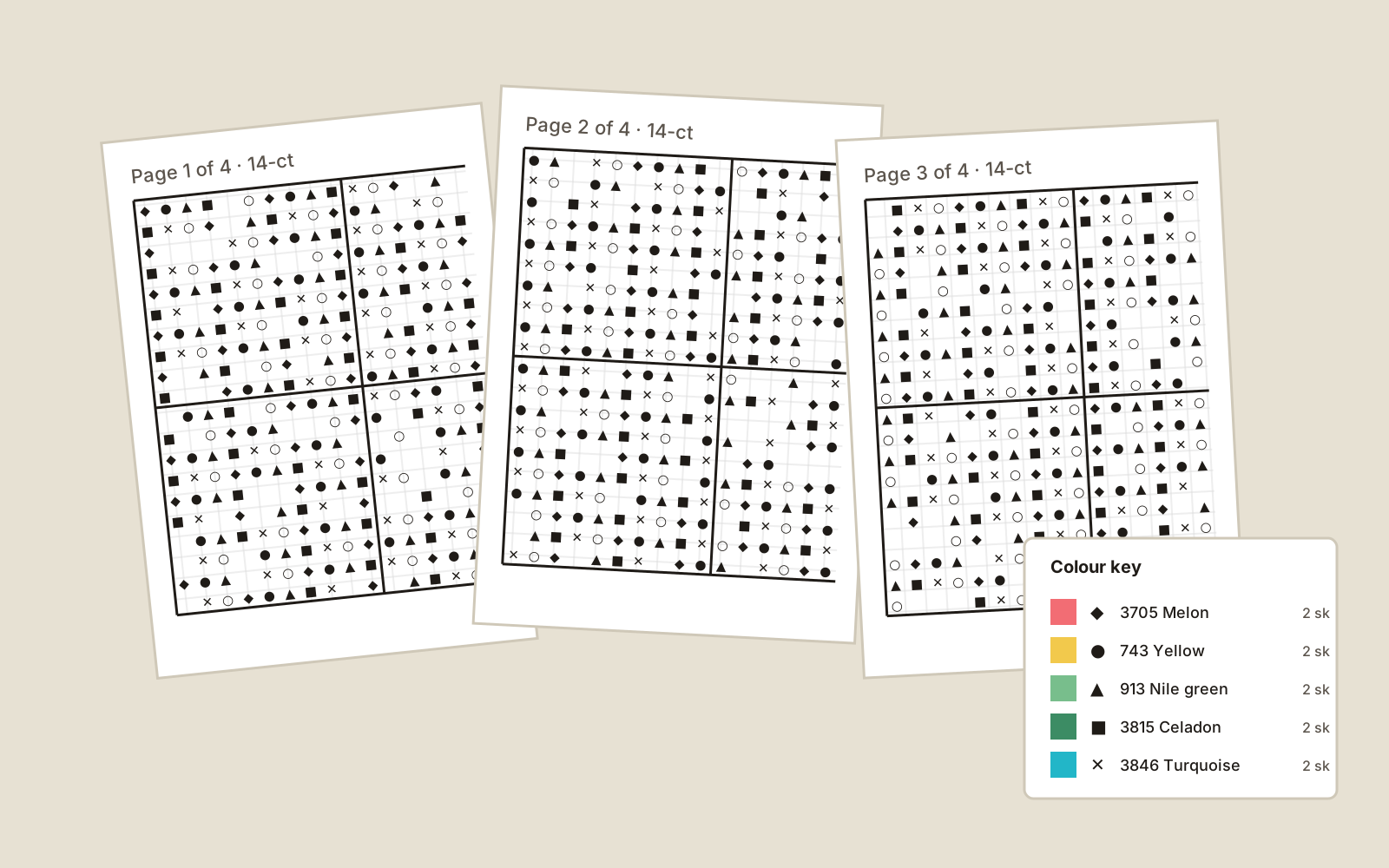
A FlossPixel PDF has four parts: the page map, the chart pages, the colour key and the size table. Knowing what each is for makes the first hour of stitching much calmer.
Page one shows the whole design small, with a rectangle over each region and its page number. Large charts print across several sheets; the map tells you which sheet holds which part.
Each chart page repeats a few columns and rows from its neighbours, marked with a grey band. Line those up when you tape sheets together — or simply stitch from one page and switch when you reach the band. Never count the band twice.
Every tenth line is bold so you can count in blocks of ten instead of single squares. Arrows on the edges mark the centre column and row; find the centre of your fabric, start there, and the design will sit where the size table says it will.
Each row is a symbol, a colour swatch, a floss code and name, the stitch count and the skein estimate. Symbols are chosen for contrast at small sizes — filled shapes for dominant colours, outlines for rarer ones.
Print at 100% scale, not "fit to page", so the grid is identical on every sheet. If the symbols look small, print at 120% — the overlaps still line up because every page scales together. Highlight stitched areas as you go; a photocopy of the chart is fine for your own use.
Ready to try it? The pattern maker is free and runs in your browser.
Open the maker
A complete guide to making a cross stitch pattern with realistic floss limits, Aida sizing and confetti control.
2 September 2026 · 7 min read
Why capping your palette to 25–35 colours produces cleaner embroidery with fewer thread changes.
1 September 2026 · 5 min read
Calculate exact cut sizes across 11, 14, 16 and 18-count Aida with the built-in fabric calculator.
30 August 2026 · 4 min read