Choosing the Right Floss Budget for Your Pattern
Why capping your palette to 25–35 colours produces cleaner embroidery with fewer thread changes.
1 September 2026 · 5 min readGuides & notes · Tutorial
A complete guide to making a cross stitch pattern with realistic floss limits, Aida sizing and confetti control.
2 September 2026 · 7 min read
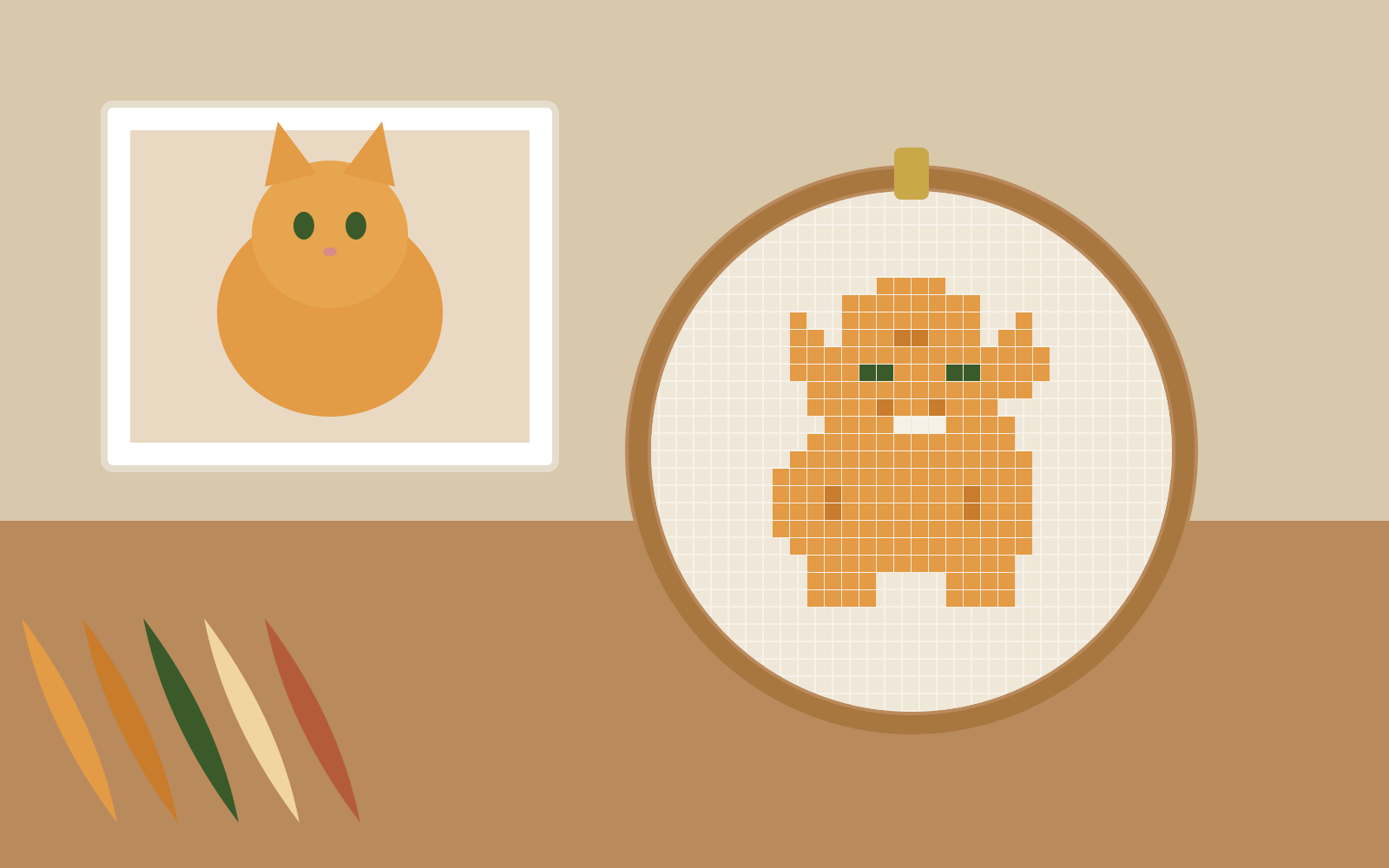
Turning a photo into a chart is easy. Turning it into a chart you will actually finish is the skill. This guide walks through the whole process in FlossPixel, and at each step explains the decision that separates a good chart from a frustrating one.
Everything downstream depends on this. You want one clear subject, even light and a quiet background. A pet on a plain blanket, a face by a window, a single flower against sky. If the photo has a busy background or soft gradients, it is still usable — but plan on an AI redraw first rather than a direct conversion.
Crop before you convert. At 100 stitches wide, a tightly cropped face gets 40–50 stitches of detail; the same face in a full-body shot gets 10. Resolution barely matters — a sharp 800-pixel image beats a blurry 4,000-pixel one.
Stitch width sets everything: detail, finished size and hours. As a rule of thumb on 14-count Aida:
Start smaller than you think. You can always regenerate; you cannot un-stitch.
A photo has millions of colours. A chart should have 20–35. FlossPixel's colour limit forces the converter to cluster similar shades before matching them to floss, which is what keeps a ginger cat from needing eleven oranges. Our floss budget guide covers how to choose the number.
Drag the smoothing slider until isolated single stitches disappear from the preview. Watch the confetti count in the panel — under one per hundred stitches is comfortable. The confetti article explains why these stitches are so costly.
The panel shows finished size on 11, 14, 16 and 18-count Aida. If it is too big, drop the stitch width or move to a finer count; if too small, do the opposite. The fabric maths guide has a calculator.
Download the paged PDF. Print at 100% scale (not "fit to page") so the grid stays consistent across sheets, tape the pages along the overlap guides, and start from the centre mark outward. You are stitching.
Ready to try it? The pattern maker is free and runs in your browser.
Open the maker
Why capping your palette to 25–35 colours produces cleaner embroidery with fewer thread changes.
1 September 2026 · 5 min read
Calculate exact cut sizes across 11, 14, 16 and 18-count Aida with the built-in fabric calculator.
30 August 2026 · 4 min read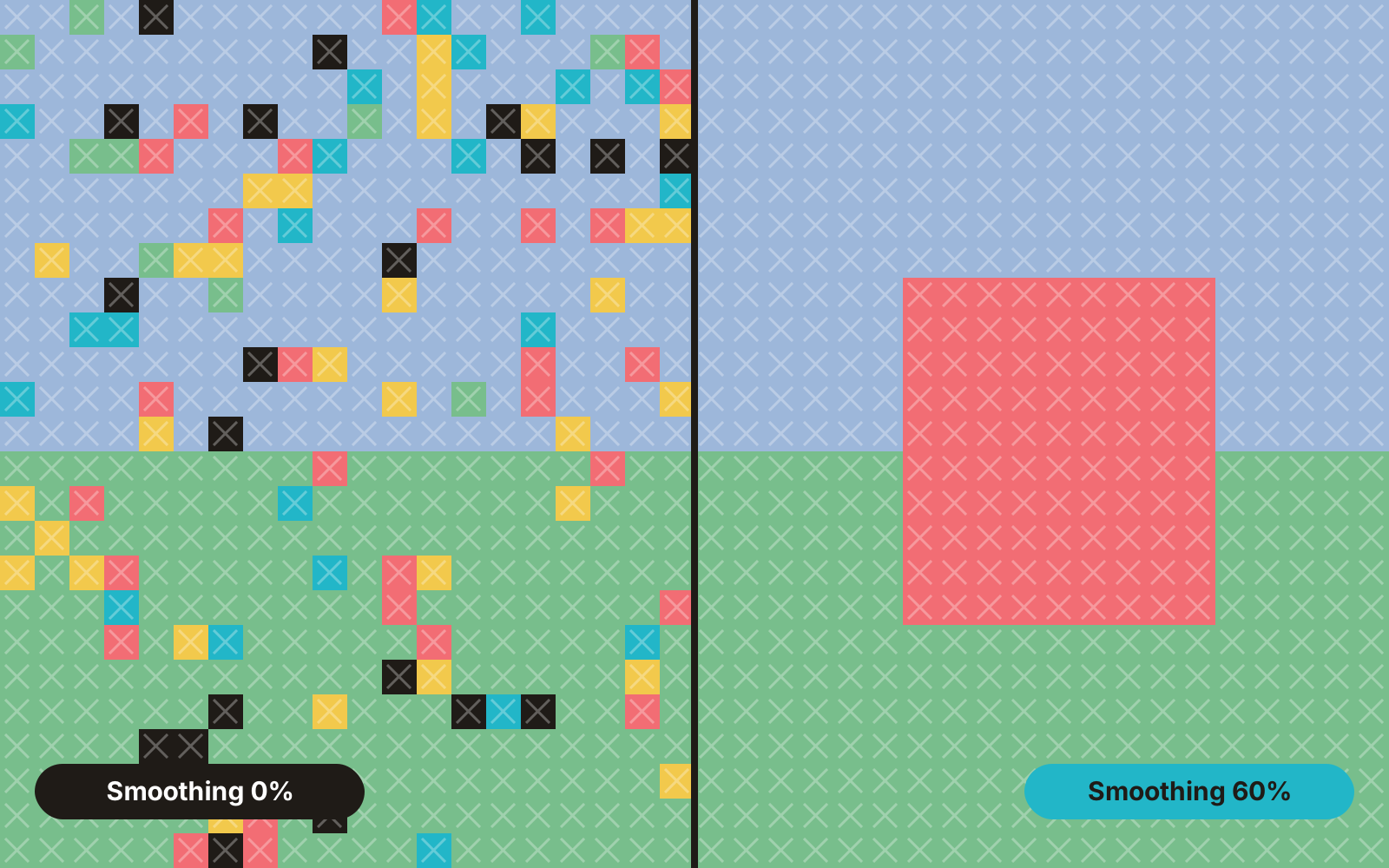
Isolated single stitches are the biggest time sink in photo charts. Here is where they come from and how the smoothing slider removes them.
28 August 2026 · 5 min read